How to Add a Leaderboard to SharePoint (and Microsoft Teams)
Jarred Hess, Founder of MakeTheBoard
SharePoint has no leaderboard web part. Three ways to build one: a sorted list view, a Power BI report, or a live embedded board kept in sync with Power Automate.
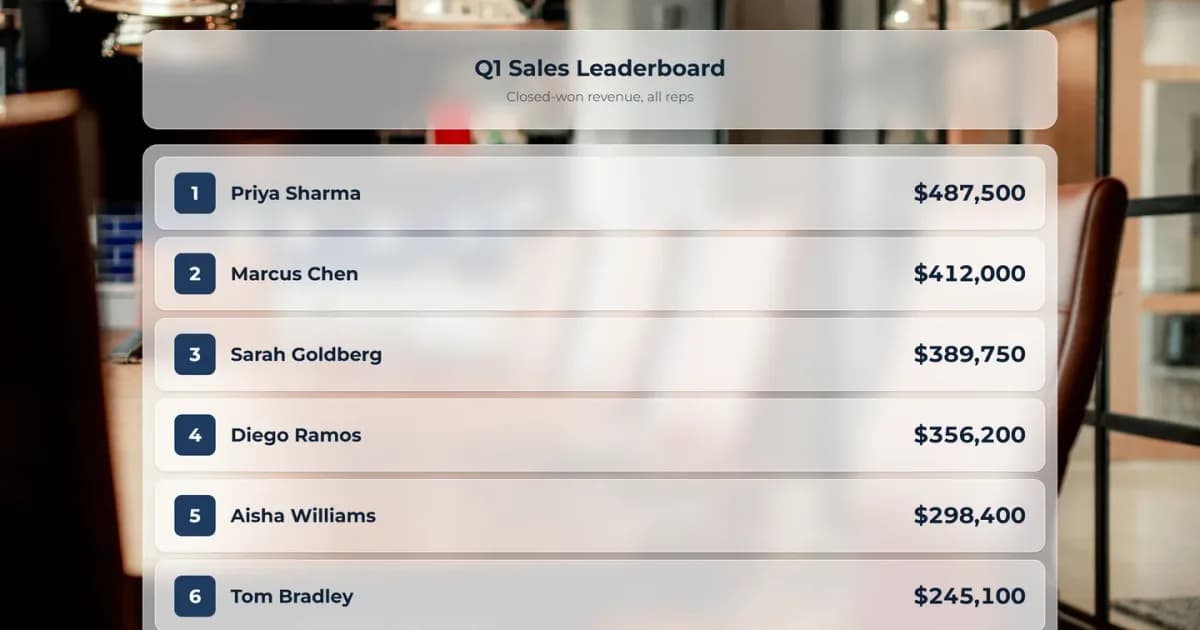
SharePoint doesn't have a leaderboard web part. To show one on a SharePoint page you have three options: a list view sorted by score, a Power BI report, or a live leaderboard embedded with the Embed web part and kept up to date from a SharePoint list or Excel table with Power Automate. The list view is the quickest, Power BI suits teams that already report in it, and an embedded board is the one that looks like a leaderboard: ranks, a podium, and live updates.
This post walks through all three, including the question Microsoft's forums get asked over and over: how to show the people who contribute the most to a list.
The three ways to build a SharePoint leaderboard
| Sorted list view | Power BI report | Embedded live leaderboard | |
|---|---|---|---|
| Setup time | 10 minutes | An afternoon | 15 minutes |
| Looks like a leaderboard | No, a table | Somewhat, with work | Yes |
| Updates live | On page refresh | On dataset refresh | Instantly |
| Works in Teams | As a SharePoint page | Power BI tab | Website tab |
| Cost | Included | Viewers generally need a Power BI license | Free to embed; auto-sync on a paid plan |
Option 1: a list view sorted by score
This is the native way, and for a small internal ranking it's enough.
- Create a list with the person's name in the Title column and a number column called Score.
- Create a view (the view dropdown, then Create new view, then Edit current view). Sort by Score, descending, and under Item Limit show 10 items.
- Add it to a page. Edit the page, add a List web part, pick your list, and choose the view you just made.
The page now shows the top ten, highest first, every time it loads. What you don't get: rank numbers, highlighting for the top three, or anything that reads as a leaderboard from across the room. It's a sorted table.
Showing the top contributors to a list
A common variation is ranking people by how many items they've added, say entries in a knowledge base or ideas in a suggestion list. SharePoint gets you halfway: group a view by Created By and switch on a Count total, and each person's group shows how many items they created.
The catch is that SharePoint can't sort the groups by that count, so the busiest contributor isn't on top. To get a real ranking, have a Power Automate flow add 1 to that person's score each time they create an item, and show the scores somewhere that ranks them (option 3 below does exactly this).
Option 2: a Power BI report
If your organization already uses Power BI, build a bar chart or table visual sorted by score, publish the report, and add it to the page with the Power BI web part.
It's flexible and can pull from almost any data source. The trade-offs are the setup work, refreshes that run on a schedule rather than instantly, and licensing: people viewing the report generally need a Power BI license unless your organization has the capacity licensing that covers free viewers. For a sales team that lives in Power BI, it's a good fit. For a step challenge or a training contest, it's a lot of machinery.
Option 3: embed a live leaderboard
The third way is to build the leaderboard in a tool made for it and embed it on the page. Here's how it works with MakeTheBoard, which is what we make.
- Build the board. Add your people and their scores. Pick a layout: a ranked list, a podium for the top three, or cards.
- Copy the embed code. In the board editor, open Share, then Add to website, and copy it.
- Add an Embed web part to your SharePoint page and paste the code in. If SharePoint says embedding from the site isn't allowed, a site owner adds
maketheboard.comunder Site settings → HTML Field Security.
Scores you change update on the page instantly, with no refresh, so it also works on a lobby or break-room screen. Embedding is free on every plan.
Keep it in sync with your list or spreadsheet
Most teams already track the numbers in a SharePoint list or an Excel workbook, so typing them into a second place isn't an option. Power Automate can do it for you:
- From a SharePoint list: a flow triggered by When an item is created or modified sends that row's name and score to the board.
- From an Excel table: a flow that runs every 15 minutes reads the table and sends every score in one call.
- Counting contributions: a flow on item creation sends
"delta": 1for the item's author, which gives you the top-contributors ranking SharePoint can't sort.
The full step-by-step, with the exact request body for each flow, is in our SharePoint & Teams guide. Syncing uses the leaderboard API, which is on the Pro and Premium plans. Power Automate's HTTP action is a premium connector, which many business Microsoft 365 plans include.
Putting the leaderboard in Microsoft Teams
Teams has no leaderboard app built in either. The simplest route is a Website tab: in the channel, click +, choose Website, and paste the board's embed address (the /embed/ link from the Add to website tab, not the regular share link). Everyone in the channel then has the standings one click away, updating live.
If your organization has turned off Website tabs, put the board on a SharePoint page first and add that page as a tab.
What teams track on SharePoint leaderboards
The format works for anything you can count:
- Sales: revenue, deals closed, or calls made per rep. Our sales leaderboard page has layouts built for this, and how to track sales team performance covers which numbers to rank.
- Training: courses completed, certifications earned, or quiz scores.
- Knowledge sharing: articles written or questions answered in a knowledge base list.
- Wellness challenges: steps, workouts, or volunteering hours by person or department.
- Fundraising drives: money raised per team, shown as a goal tracker with a thermometer.
Ranking people in public motivates some and discourages others, so rank teams or departments when individual results are sensitive, and celebrate progress as well as first place.
Which one should you use?
Use a sorted list view if you need something today and the look doesn't matter. Use Power BI if the data already lives there and your viewers are licensed. Use an embedded live leaderboard if you want it to look and feel like a leaderboard, update the moment scores change, and appear in Teams as well. You can build one free and have it on your SharePoint page in about fifteen minutes.
Frequently Asked Questions
No. There is no built-in leaderboard web part in SharePoint Online. You can fake one with a list sorted by score, embed a Power BI report, or embed a leaderboard from a dedicated tool with the Embed web part.
Add a number column (Score), create a view sorted by Score descending with the item limit set to 10, and show that view on a page with the List web part. It's free and always current, but it looks like a table and can't show ranks or medals.
Group a view by Created By and turn on a Count total, which shows how many items each person added. SharePoint can't sort the groups by that count, though, so for a true ranking use Power Automate to keep a running total per person and send it to a leaderboard.
Yes. Add a Website tab to the channel and paste the leaderboard's embed address. If your organization blocks Website tabs, put the leaderboard on a SharePoint page and add that page as a tab instead. Step-by-step instructions are in our SharePoint & Teams guide.
Yes. A scheduled Power Automate flow can read an Excel table every few minutes and push all the scores to the leaderboard in one call. The HTTP action it uses is a premium Power Automate connector, which many business plans include.
The sorted list view is free. Embedding a live MakeTheBoard leaderboard on a SharePoint page is also free on every plan; automatic syncing from a list or Excel uses the API, which is on the Pro and Premium plans.
Ready to create your board?
Sign up free and build a leaderboard, scoreboard, or goal tracker in under a minute.
Create Your Board