Display on a TV or Projector
Put your board on the big screen. It updates live, so the standings change the moment you edit a score. No app, no plugin, works on every plan.
1
Open the public link on the screen
On the TV, smart display, or connected laptop, open any browser and go to your public link:
maketheboard.com/b/your-board-slug. Grab it from the Share button.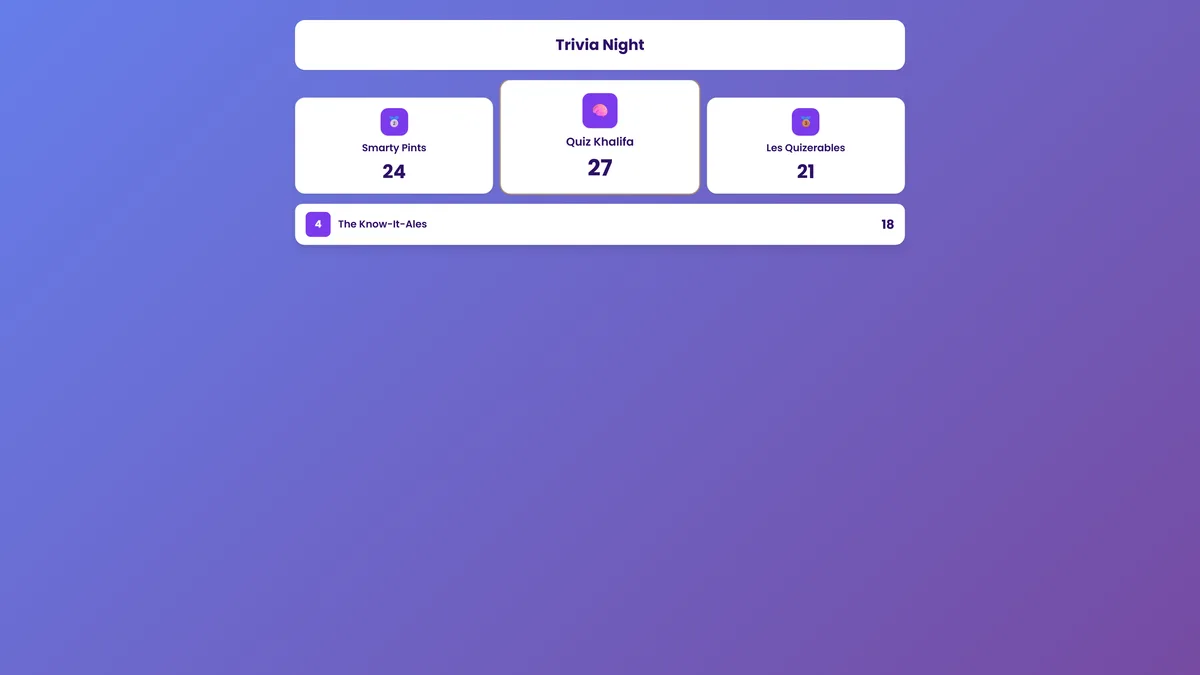
2
Go fullscreen
Press F11 (or use the browser's fullscreen menu) to hide the address bar and fill the screen with just the board.
3
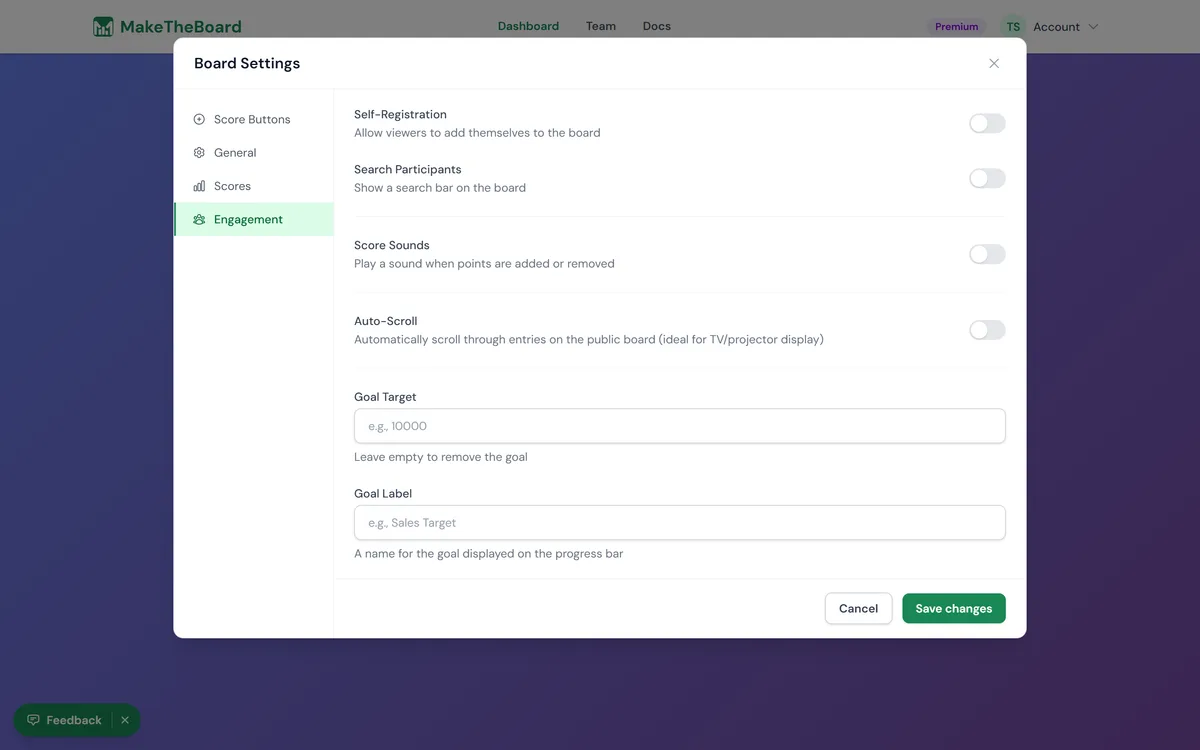
Turn on Auto-Scroll for long lists
If your board has more rows than fit on screen, open Board settings → How it works → Presentation and enable Auto-Scroll so the display cycles through everyone automatically.
💡
Set it and forget it
Once it's fullscreen, you can leave the screen running all day. Scores you edit from your phone or laptop appear instantly, with no need to refresh.
Best practices
- Width & readability: fewer, larger columns read better from across a room. Trim optional columns for a clean, glanceable board.
- Brightness: high-contrast themes hold up under bright room lighting and on projectors. Pick a light background with bold text for maximum legibility.
- Sleep settings: disable screen savers / sleep on the TV so the board stays up during an event.
Devices that work
- Smart TVs: open the public link in the built-in browser.
- Chromecast, Fire TV Stick, Apple TV: cast or open a browser app and load the link.
- Laptop or mini-PC + HDMI: the most reliable option; full keyboard control for fullscreen.
ℹ️
Note
Anything that can open a web page can show your board. When in doubt, a laptop plugged into the screen over HDMI always works.