Score Buttons
Score buttons let you update a score with a single tap. Configure the button values to match your scoring system so you can keep up with the action without typing.
Where to find them
Open your board in the editor at /boards/<slug>, then go to Board settings → How it works → Scoring controls. That section controls which buttons appear next to each entry and how scores can be updated. The same buttons show on leaderboard rows and under each goal on a goal tracker. Scoresheets don't use them, since each round is scored in its own cell.
1
Open Scoring controls
In the board editor, click Board settings, switch to the How it works tab, and open Scoring controls — it's the first section, and it's expanded by default.
2
Add or remove button values
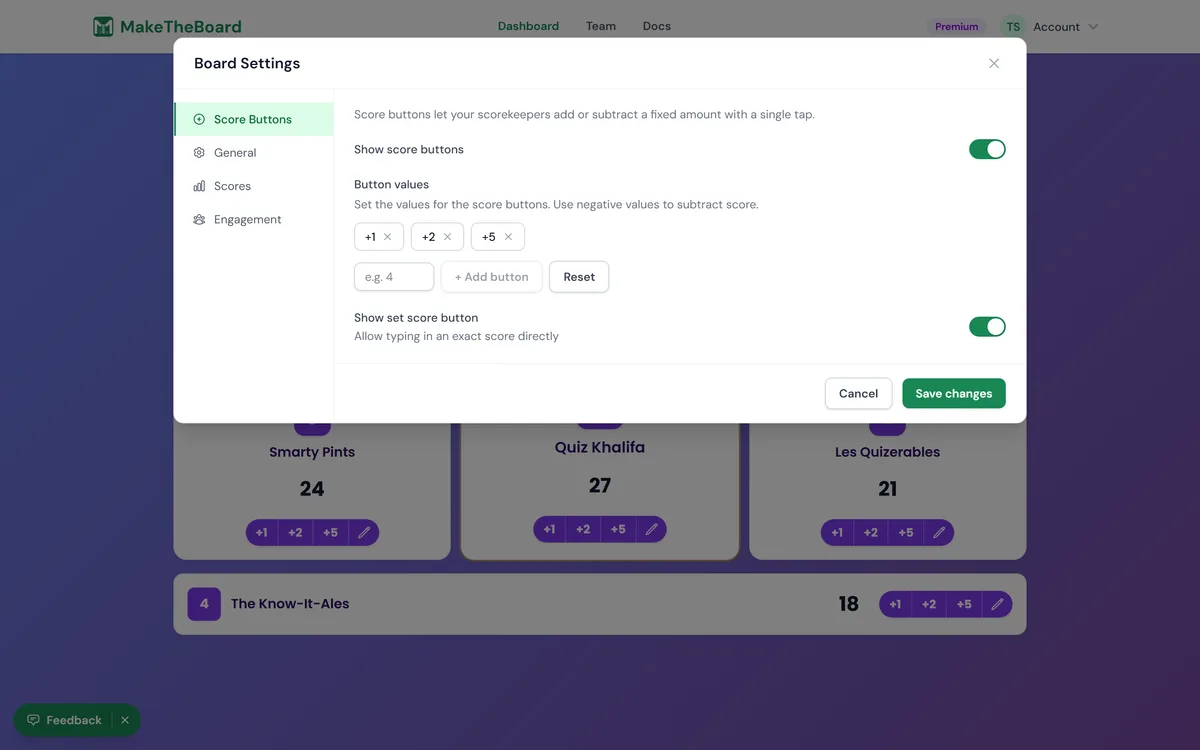
Each button adds or subtracts a set value when tapped. Enter a number (positive or negative) to add a button, for example
+1, +5, or +10. Use negative values like -1 or -5 for penalty points or corrections. Click the remove icon on any value you don't need. Buttons appear in the order you add them, so keep the most-used values first.3
Toggle showing the buttons
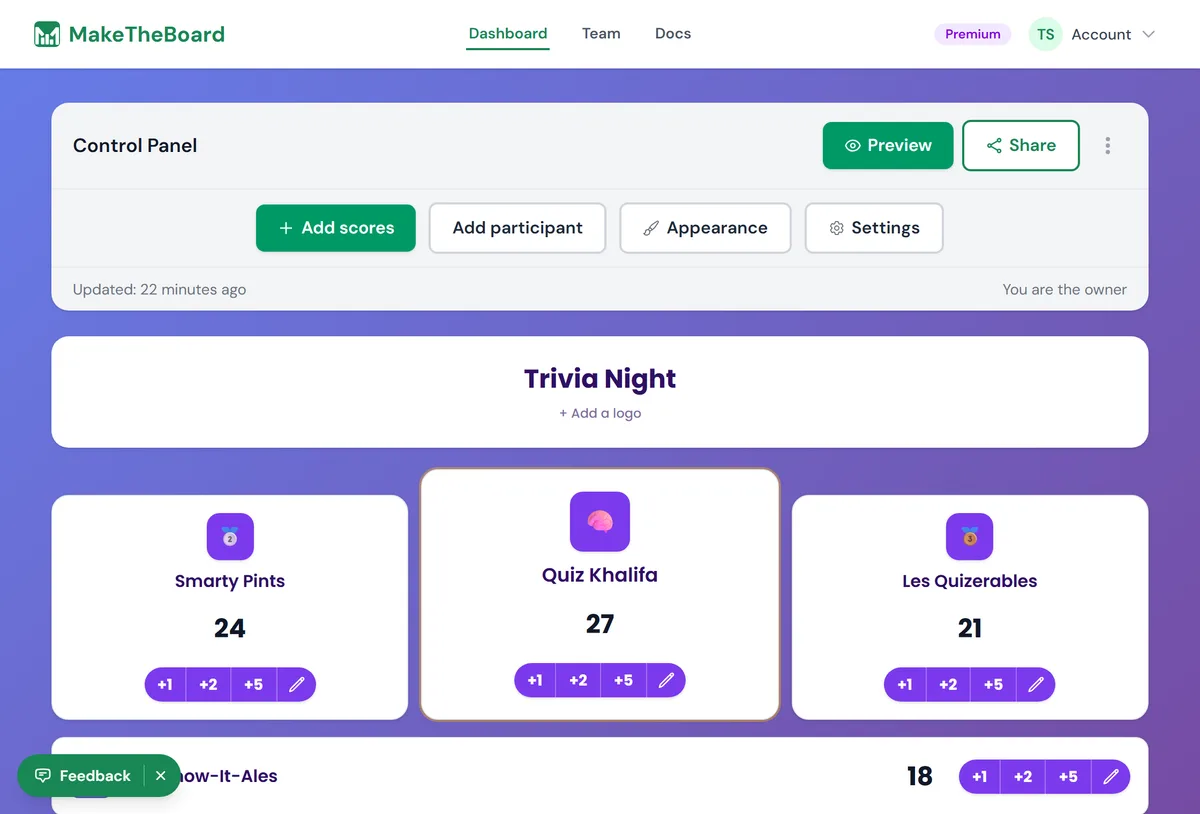
Use Show quick-score buttons to control whether the one-tap buttons appear next to each entry. Hide them if you prefer to type exact scores or update via the API.
4
Type an exact score any time
Click a score in the editor to type an exact value. That works whether or not the quick-score buttons are showing — handy when scores jump by irregular amounts, like entering a fundraising total instead of tapping +1 repeatedly. There is nothing to switch on. On a goal tracker, click Update Goal Tracker under the goal instead.
💡
Common setups
+1 / -1for simple point tallies and votes.+3 / -2 / -5when rule breaks cost points: the negative buttons show in red so penalties are easy to spot.+5 / +10(or larger) for sports where each play is worth several points.+10 / +50 / +100for fundraising and donation boards.